


Samsung Music
3.822.30K Reviews
App Specs
- Version
- 16.2.44.0
- Updated On
- License
- Free
- Downloads
- 1,000,000,000+
- Developer
- Samsung Electronics Co., Ltd.
- Categories
- Music & Audio
- Platform
- Android, iOS
Screenshots

 Analysis by AppCompare
At home, music often becomes a shared-device question: one person wants a playlist while someone else needs the phone for a call or directions. I like Samsung Music best as a straightforward player for music stored on a Samsung phone, rather than as a central family account or a streaming service. That distinction matters when several people use the same device: the app can make local listening convenient, but each listener still needs to coordinate around the phone and whatever music is available on it.
Getting Started with Samsung Music
First things first, installing Samsung Music is a breeze if you’re on a Samsung device. It often comes pre-installed, but if not, a quick trip to the Google Play Store will sort you out. The app is designed to integrate seamlessly with Samsung’s ecosystem, making it feel like a native part of your phone.
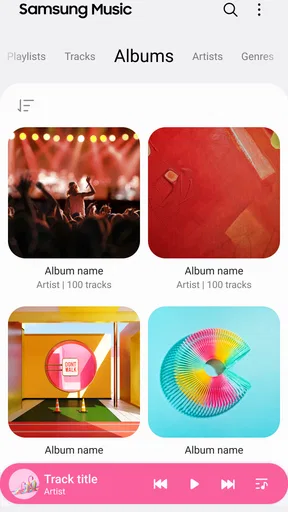
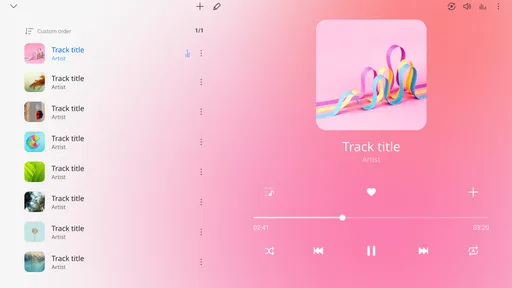
Once you fire it up, the interface is clean and intuitive. You’re greeted with a simple and user-friendly layout that almost feels like a warm hug. It’s like the app is saying, "Hey, I’m here to make your music experience as smooth as possible."
Guides and Analysis on Samsung Music
Before treating it as a shared household player, I’d first check what music the phone actually has and how the library is organized. A family member may expect a streaming catalogue, while the player is most useful when there are audio files on the device to browse and play. Setting that expectation early avoids the common confusion of opening a music app and assuming every song someone can name will be available.
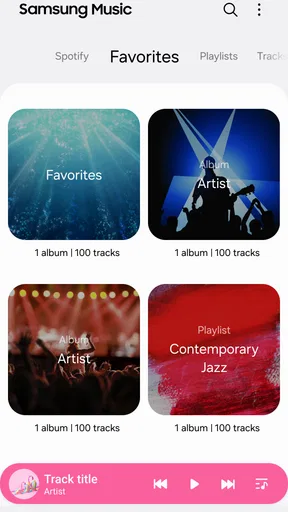
For a practical first run, I’d let each person choose a small group of favorites and see how they appear in the library before building a complicated system. If tracks are already arranged in folders, keeping that structure consistent can make browsing easier later. If they are mixed together, a little sorting up front is more useful than trying to remember which person added which album.
Features That Make It Stand Out
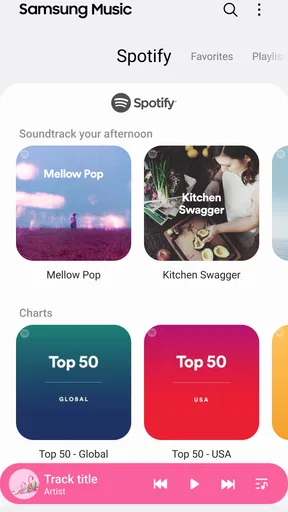
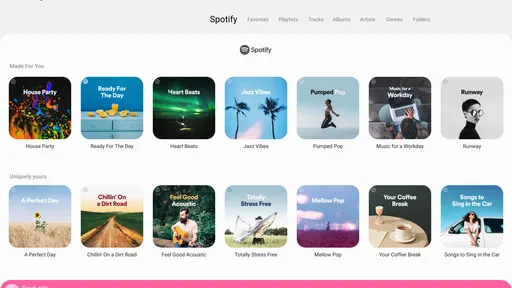
Let’s talk features. Samsung Music supports a wide range of audio formats, including MP3, WMA, AAC, and FLAC. This means you can enjoy high-quality sound without needing additional apps. The app also syncs effortlessly with your Spotify account, which is a huge plus if you’re a Spotify junkie like me.
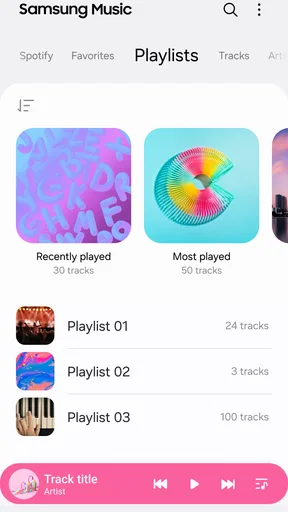
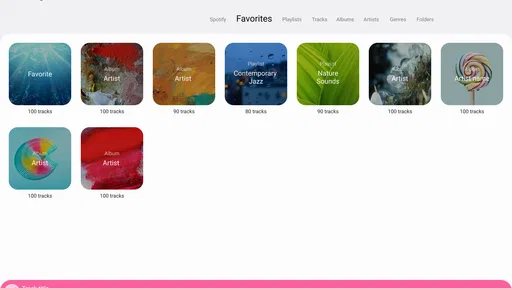
One of the standout features is the ability to customize playlists. You can organize your music by mood, genre, or even by the day of the week. It’s like having a personal DJ who gets you. The app also lets you create and manage folders, so you can keep everything neat and tidy.
Worth Reading Before You Choose

Basketball Stars: Multiplayer Is Fast, but Can It Recover When Matches Go Wrong?

WEBTOON Turns Phone Updates Into a Better Reading Routine

Link to Windows Runs on Shared Habits, Not Social Feeds

How Alibaba.com Dominates the B2B Marketplace

Metro's Quiet Rise: Redefining Mobile Communication

Harnessing Ecosystem Power with Phone Tracker by Number
For a shared phone, playlists work best when they solve a specific listening problem rather than becoming a second filing system. I’d make a short household playlist for background music and keep personal listening separate in its own playlists or folders where possible. That way, someone can start a familiar mix without scrolling through another person’s albums. It also makes handoffs easier: the next listener can pick a clearly named playlist instead of guessing what was playing.
A useful trade-off is that folders can provide a sense of order, but they depend on how the audio files are arranged in the first place. If the household keeps adding music from different sources without a consistent naming habit, folders may not stay tidy by themselves. I’d treat playlist names and folder organization as light maintenance, not a set-it-once solution. A quick cleanup when adding a batch of new tracks can save more time than repeated searching later.
If you’re comparing it with a typical streaming-first music app, the difference is less about which one is universally better and more about what you want to listen to. A streaming service is usually the better fit when discovery, an extensive online catalogue, and personal accounts are the priority. Samsung’s player is more appealing when you already have audio files on your Galaxy device and want a simple way to play and arrange them. Spotify integration may help bridge those habits, but I wouldn’t choose this app on the assumption that it replaces every feature of a dedicated streaming service.
If you’re into exploring music, the app’s "Discover" feature is a must-try. It suggests new tracks and artists based on your listening habits, so you’re always in the loop about what’s trending.
That kind of recommendation is more useful for an individual listener than for a family sharing one phone. Listening tastes can differ, and a shared device can make the suggestions feel less personal if several people take turns. I’d use recommendations as a prompt for one person’s next listening session, then put any household favorites into a separate shared playlist. This keeps discovery from turning into a debate about whose history should shape the next suggestion.
User Experience and Performance
The performance of Samsung Music is generally smooth. I’ve been using it for a while, and I haven’t encountered any major lags or crashes. The app loads quickly, and navigating through your library feels like a breeze.
One everyday example is getting ready in the morning: I can start a familiar playlist while making breakfast, then hand the phone to someone else without needing to reopen a streaming search or rebuild the queue from scratch. In a shared home, that simplicity is a real strength. The limitation is equally practical: if the phone leaves the room with its owner, the music goes with it, so this is not a substitute for a dedicated shared speaker or a household-wide playback setup.
One thing I absolutely love is the lock screen widget. It allows you to control playback without unlocking your phone, which is perfect for those times when you’re on the go. Plus, the equalizer settings let you tweak the sound to suit your preferences, giving you that perfect bass or treble boost.
For a shared device, lock-screen controls are convenient but also make it easy for the next person to pause, skip, or change what is playing without navigating the library. That is handy when everyone agrees on the music, and mildly irritating when someone has carefully chosen a track. I’d use the widget for quick control, but avoid leaving a personal queue running when another listener is about to take over. The equalizer is similarly personal: a sound setting that suits headphones may not be comfortable through a room speaker, so I’d check it again when changing how the phone is being used.
One point worth keeping in mind is that a music player’s everyday usefulness depends on the contents of the phone, not just the layout of its controls. If a song is missing, the first step is to check whether the audio file is available and recognized in the library, rather than repeatedly searching for it inside the player. That simple distinction helps explain why a local-library app can feel wonderfully direct to one person and unexpectedly limited to someone who mainly listens online.
Samsung Music is developed by Samsung Electronics Co., Ltd. and is free to use. Its broad reach is reflected in more than a billion installs, while its average rating sits at 3.8 from around 816,000 ratings. I read that as a familiar, widely used utility with a mixed enough response to encourage realistic expectations: it can be a good fit for the right listening habits, but popularity alone does not make it the ideal player for every phone or household.
Is Samsung Music Right for You?
So, should you give Samsung Music a shot? If you’re already immersed in the Samsung ecosystem, it’s almost a no-brainer. The integration with other Samsung services and devices makes it a convenient choice. However, if you’re using a different brand, you might miss some of these seamless features.
The app is aimed at Samsung Galaxy users and supports Android, with a minimum operating-system requirement of version 9. The current version is 16.2.42.0. It is rated Teen, a detail parents may want to consider if a young person uses the phone. That age context is not the same as a household profile or a content filter, so I wouldn’t treat the rating as a tool for separating children’s listening from an adult’s. For shared use, the dependable boundary is still who has access to the device and how the music library is arranged.
If you’re deciding whether it belongs on a family phone, I’d ask three plain questions: is the phone a Samsung Galaxy, are the songs people want available on the device or through their chosen service, and will everyone be comfortable sharing one library and playback queue? A yes to the first two makes the app easier to recommend. If separate accounts, private recommendations, or independent listening histories are essential, I’d favor a service designed around individual profiles instead of expecting a local player to provide those boundaries.
For those who enjoy customizable playlists and high-quality audio, this app is definitely worth exploring. The Spotify integration is a neat bonus, making it easy to switch between different music libraries.
There is also a small coordination habit that can prevent friction: agree on a neutral name for any playlist meant for everyone, and keep personal mixes clearly labeled. It does not create separate accounts, but it makes the shared collection easier to navigate without turning every listening session into a search through someone else’s choices. If several people add music, occasional tidying is worthwhile; if nobody wants to maintain a shared library, a personal streaming account or a simpler single-purpose setup may be less work.
My recommendation is strongest for someone who wants an uncomplicated way to play music already available on a Galaxy phone, adjust the sound, and keep familiar playlists close at hand. I’d be more cautious about recommending it as the main solution for a household that expects each person to have their own listening space. That is not a criticism of its basic role; it is simply a mismatch between a convenient player and the broader account and coordination needs of a busy family.
Overall, Samsung Music is a solid choice for anyone who wants a straightforward, reliable music app. It’s like a trusty old friend who’s always ready to play your favorite tunes. So, if you haven’t tried it yet, maybe it’s time to give it a whirl and see if it becomes your next go-to music app.
Happy listening!
Pros
- Intuitive and easy-to-use interface.
- Seamless integration with Samsung devices.
- Supports a wide range of audio formats.
- Customizable playlists and equalizer.
- Offline playback available.
Cons
- Limited features for non-Samsung users.
- No integration with non-Samsung services.
- Ads in the free version.
- Lacks advanced music discovery.
- No lyrics display feature.
FAQs for Samsung Music
What features does Samsung Music offer?
Samsung Music offers a comprehensive music experience with features such as playlist creation, equalizer settings, and seamless integration with Samsung devices. It supports a wide range of audio formats and provides an intuitive interface for easy navigation. Users can also enjoy offline playback by downloading their favorite tracks.
Is Samsung Music compatible with all Android devices?
Samsung Music is primarily designed for Samsung smartphones and tablets, ensuring optimal performance on these devices. However, it may not be fully compatible or available for download on non-Samsung Android devices, as it is tailored to work within the Samsung ecosystem.
Does Samsung Music support music streaming services?
While Samsung Music primarily functions as a local music player, it also offers integration with popular streaming services like Spotify. This allows users to access and manage their streaming playlists directly from the app, providing a more unified listening experience.
Can I use Samsung Music offline?
Yes, Samsung Music allows you to play music offline by downloading tracks to your device. This feature is particularly useful for users who want to enjoy their music without relying on an internet connection, such as during travel or in areas with poor network coverage.
Are there any costs associated with using Samsung Music?
Samsung Music is free to download and use for playing your locally stored music. However, accessing some additional features, such as integration with streaming services, may require separate subscriptions or fees, depending on the service provider. Always check for any in-app purchases or subscription requirements.


